Create High Availability Architecture with AWS CLI | Shubham Rasal

Greetings, fellow tech enthusiasts! I'm Shubham Rasal, but you might know me better as the SREngineered.
Over the last three years, I have immersed myself deeply in the intricate universe of DevOps and SRE. Along the way, I've brought life to various technologies and projects, utilizing everything from bash script automation to Kubernetes production clusters. My credentials include the Certified Kubernetes Administrator (CKA) and Ansible Certified Engineer titles, standing testament to my unwavering commitment to and understanding of our craft.
This blog is designed for kindred spirits who are passionate about engineering excellence. My goal is to share my experience, knowledge, and wisdom through tutorials, case studies, and Golang code examples that offer valuable solutions for navigating the continually evolving world of DevOps and SRE.
No matter where your interests lie within the vast landscape of DevOps/SRE, Automation, and Golang, this blog aims to offer valuable insights to help you elevate your skills and understanding. So, buckle in and join me on this journey into the thrilling world of cutting-edge engineering solutions!
When I'm not busy conjuring up elegant engineering solutions, I enjoy getting lost in the immersive worlds of movies and books. Feel free to connect with me on LinkedIn, Twitter, or through email.
AWS -11
Creating cloud architecture for the web app with low latency for resources
We are going to create the above architecture using AWS CLI. Let’s discuss architecture and how we are going to do it?
🔶The architecture includes-
◼️ Launch EC2 instance
◼ Create EBS volume
◼Mount EBS volume to EC2 instance
◼Create an S3 bucket
◼Upload static objects such as images, videos, or documents in the S3 bucket
◼Create a content delivery network (CDN) using aws CloudFront distribution for S3 bucket
◼️️ Configure instance as the webserver
◼Place CloudFront URL in an application for security and low latency
◼Deploy source code on EC2 instance webserver.
The final goal is to achieve all these tasks using AWS CLI without going to the website and manual clicks.
If you are very new to AWS CLI, I would like you to check out the basic introduction to AWS CLI
[What is AWS CLI? How to use AWS CLI?
Launch EC2 instance, create EBS and attach EBS volume to EC2 instance using aws CLI.developer-shubham-rasal.medium.com](https://developer-shubham-rasal.medium.com/what-is-aws-cli-how-to-use-aws-cli-6f1bdedabd2b "https://developer-shubham-rasal.medium.com/what-is-aws-cli-how-to-use-aws-cli-6f1bdedabd2b")
[Deploying Angular App to AWS S3 with CloudFront using AWS CLI
Deploy angular website on aws using aws CLIdeveloper-shbham-rasal.medium.com](https://developer-shubham-rasal.medium.com/deploying-angular-app-to-aws-s3-with-cloudfront-using-aws-cli-ace33350a950 "https://developer-shubham-rasal.medium.com/deploying-angular-app-to-aws-s3-with-cloudfront-using-aws-cli-ace33350a950")
Action Mode 🔥
I am assuming that you have created an IAM user that has EC2, CloudFront, and IAM access and configured AWS CLI.
Create Key Pair
To create keypair we have to use the ec2 service of AWS. by using
$ aws ec2 help
you will see all the subcommands under ec2.
To create a key pair and save it in the proper format(.pem), use the below command.
Note: Windows users use PowerShell for the above commands. To activate PowerShell on normal cmd. Enter $ PowerShell command. OR Win + R and enter PowerShell to open Powershell.
Create a Security Group
You may want to create a security group in a specific VPC. For that, we need a vpc id. Let’s find the VPC id using AWS CLI.
the above command will return the list of VPC’s and tags associated with VPC.
copy the vpc id you want to create SG in and save it somewhere.
Now let's create a security group.
Don't forget to edit the command according to your need. You can change your name, description, and vpc id.
Create security group rules
we want to add rules to the security group that we have created above.
If you copy-paste the security group id then skip the below command...
Let's find the security group name and id.
the above command will give you a list of security group names and ids.
copy the id that we want to add a new rule and paste it in the below command.
the above command will create a new rule for ssh.. you can always customize as per your need... you know that right?
You can check more examples of multiple rules here...
Check that rule added successfully or not using describe subcommand.
Create a new instance
You may want to launch an instance in a specific availability zone. let’s see with AZ are available in the region you specified while configuring.
We want to attach one more EBSvolume to our instance and for that, both should in the same availability zone. Fix your availability zone for that.
AWS CLI has very well described documentation for ec2.. let's take the help of that. It will give more examples and necessary information. You always need something different than I used here.. so go and use
$ aws ec2 help
To launch an instance we need ami id of the image that we want to launch..
$ aws ec2 describe-images
I have used the key pair and security group that we have created above. I choose the ap-south-1a availability zone and amazon Linux ami to launch this instance.
You can do much more customization to this command. Check this aws Documentation.(open)
copy instance id and save it somewhere.. we will see later where we need.

run instance output
Create EBS volume
Our goal is to create a new volume and attach it to an instance that we have just created. So we need to create it in the same Availability Zone.
Update the above command as per your need. (size in GiBs).
copy volume id and save it somewhere.

Attach EBS volume to the instance.
update the instance id and volume id in the above command that we have copied and save.. remember?

Create an S3 bucket
What is S3? I mean what google says…
Amazon S3 or Amazon Simple Storage Service is a service offered by Amazon Web Services that provides object storage through a web service interface.

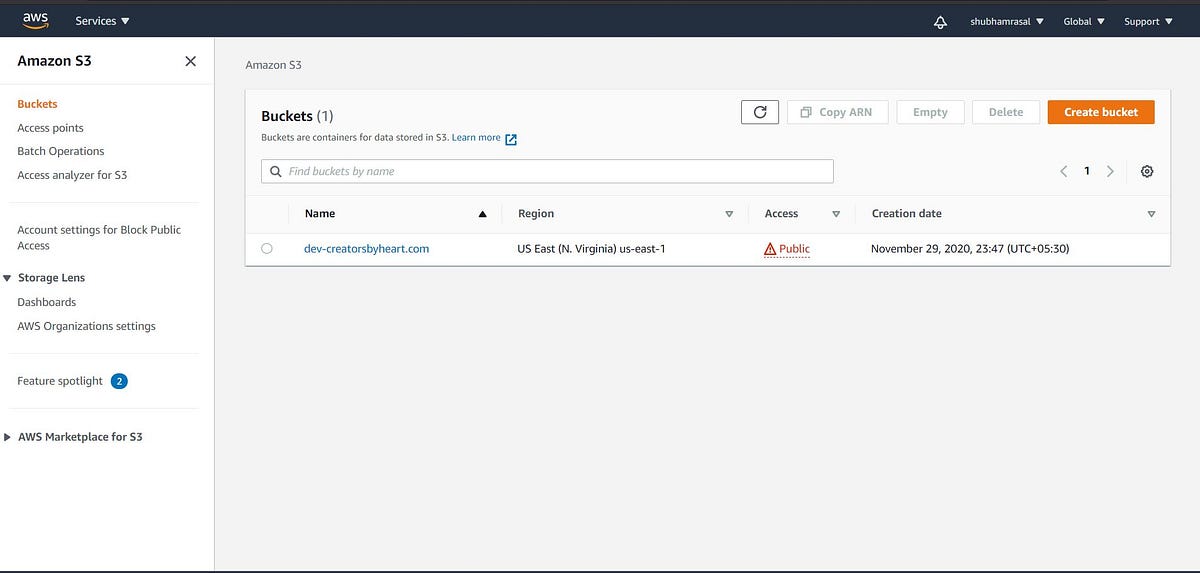
here we are using s3 APIs to create a new bucket with the name dev-creatorsbyheart.com

Update the s3 bucket policy so we can access it publically.
- Create a policy
Create a new file and give the name s3_bucket_policy.txt and paste the below code. Don’t forget to change the bucket name in the “Resource” attribute
update the bucket policy using the about command and make objects available to the public for getting action.
Upload files to s3 bucket using s3 command
Check the image is visible or not using the image URL. https://s3.amazonaws.com//<object>
If it is working all then it is time to create CloudFront for s3


Create CloudFront distribution for S3 bucket
What is CloudFront? This is what google says…
Amazon CloudFront is a content delivery network offered by Amazon Web Services. Content delivery networks provide a globally-distributed network of proxy servers that cache content, such as web videos or other bulky media, more locally to consumers, thus improving access speed for downloading the content.
- Create a new file containing the below code and name it cf_config.json
create CloudFront with the above configuration. Update the above file and replace a bucket name in the target origin name.


It will create CloudFront distribution for the s3 bucket. now we can also access s3 objects using the CloudFront URL.

If you are with me till here… give a pat on the back… good job.
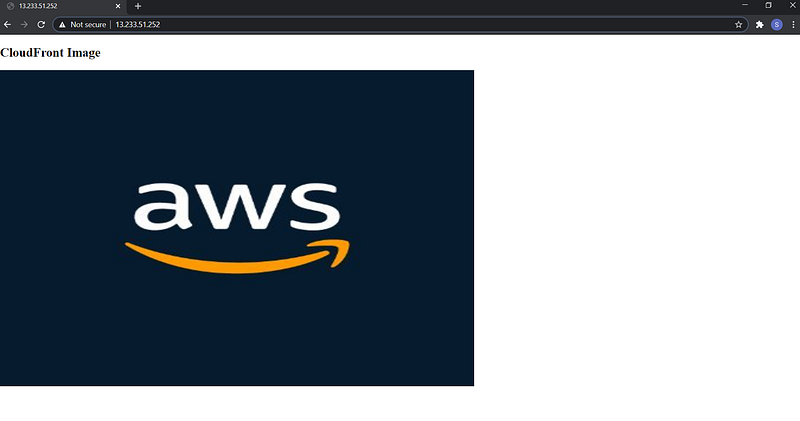
Give this URL to the developer so they can use this URL to show resources in the source code. Using CloudFront URL resources can load fastly and we can achieve less latency.
Now you can do ssh and configure the instance as a web server and mount EBS volume to document root and deploy source code.

I hope you learned something new and find aws CLI interesting.
Let me know your thoughts about this article and how do plan to use the aws CLI tool?
Thank you
About the writer:
Shubham loves technology, challenges, is open to learning and reinventing himself. He loves to share his knowledge. He is passionate about constant improvements.
Visit his Medium home page to read more insights from him.