How to Create Infrastructure on AWS for launching application?

Greetings, fellow tech enthusiasts! I'm Shubham Rasal, but you might know me better as the SREngineered.
Over the last three years, I have immersed myself deeply in the intricate universe of DevOps and SRE. Along the way, I've brought life to various technologies and projects, utilizing everything from bash script automation to Kubernetes production clusters. My credentials include the Certified Kubernetes Administrator (CKA) and Ansible Certified Engineer titles, standing testament to my unwavering commitment to and understanding of our craft.
This blog is designed for kindred spirits who are passionate about engineering excellence. My goal is to share my experience, knowledge, and wisdom through tutorials, case studies, and Golang code examples that offer valuable solutions for navigating the continually evolving world of DevOps and SRE.
No matter where your interests lie within the vast landscape of DevOps/SRE, Automation, and Golang, this blog aims to offer valuable insights to help you elevate your skills and understanding. So, buckle in and join me on this journey into the thrilling world of cutting-edge engineering solutions!
When I'm not busy conjuring up elegant engineering solutions, I enjoy getting lost in the immersive worlds of movies and books. Feel free to connect with me on LinkedIn, Twitter, or through email.
Title: Launch Portfolio on AWS using IAC with Terraform
Creating Infrastructure As Code for AWS EC2+EFS+S3+CloudFront
What do we want to do?
- Create a Security group that allows the port 80.
2. Launch EC2 instance.
3. In this Ec2 instance use the existing key or provided key and security group which we have created in step 1.
4. Launch one Volume using the EFS service and attach it in your vpc, then mount that volume into /var/www/html
5. The developer has uploaded the code into GitHub repo also the repo has some images.
6. Copy the GitHub repo code into /var/www/html
7. Create an S3 bucket, and copy/deploy the images from GitHub repo into the s3 bucket and change the permission to public readable.
8. Create a Cloudfront using s3 bucket(which contains images) and use the Cloudfront URL to update in code in /var/www/html

Plan
NOTE: For this task, I am going to use my portfolio website you can use any website/project. this is the extension for my previous blog you can check that.
I have used Code snippets images for better visualization. You can find code this code file in this Github repository.
Pre-requisite :
- AWS account.
- Download AWS CLI and Configure it.
- Download terraform. Download
Let’s Start…
You can always google if you don’t understand something. I am not going to explain the theory part of the Services of AWS.
1. Configure the Provider

2. Create Key Pair 🔑

We are using here tls_private_key for creating two resources and resource local_file is used to store this key locally. aws_key_pair is used to create key-pair in AWS and will attach this key in AWS.
3. Create a Security Group
Ingress rules are for the traffic that enters the boundary of a network. Egress rules imply to traffic exits instance or network.

We want to access our website through HTTP protocol so need to set this rule while creating a Security group. Also, we want remote access of instances(OS) through ssh to configure it. We are going to launch our webserver in this Security Group and attach EFS so that we have to open the NFS port. i.e 2049
4. Launch EC2 instance 🌍
We want to deploy our website on EC2 instance so that we need to launch an instance with installed servers and other dependencies. for that, we create an instance and download https, PHP, git, and efs utilities to configure it.

we are connecting to the instance using remote-exec provisioner and downloading necessary tools.
5. Create an Elastic File System(EFS) 📁
Amazon Elastic File System (Amazon EFS) Amazon EFS provides scalable file storage for use with Amazon EC2. You can create an EFS file system and configure your instances to mount the file system. You can use an EFS file system as a common data source for workloads and applications running on multiple instances.
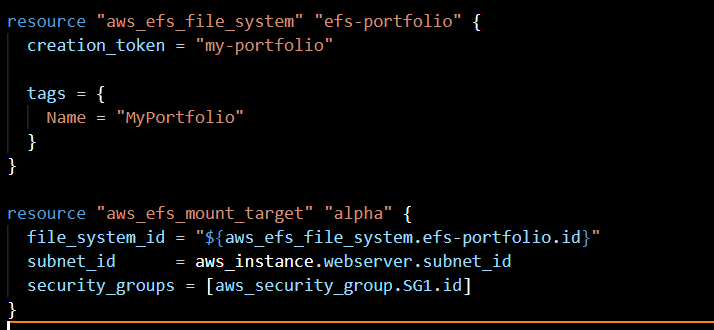
We are creating one file system ‘my-portfolio’ and mounting to a security group that we have created for our portfolio instance. so that we can have connectivity between EFS and EC2 instance. For now, we have only one instance that’s why are connecting with a subnet of that instance only. If you have multiple instances in a different subnet then you need to add this subnet also.
6. Create S3 Bucket 🪣

We used terraform’s resource ‘aws_s3_bucket’ to create a bucket. To create an s3 bucket you must give a unique name to the bucket. ‘Here’s bucket name is ‘shubham-rasal-portfolio’.
7. Add Object into S3 👦
Here we need to add multiple images to S3. for that we are using the fileset function of terraform here. You need to provide the path of the folder of your local machine. we are permitting public read so that we can use these images on our website.

8.Create CloudFront Distribution for S3 bucket

We created CloudFront distribution for our s3 bucket that we have created early. To know more about attributes please go through this: resource aws_cloudfront_distribution.
10. Time to Deploy Code on Server 🖥

Here are connecting to our instance using remote-exec provisioner through ssh. To use EFS in ec2 instance we have to mount it first. then we are downloading/clone code from GitHub repo. we need to use CloudFront for our images so I am making one file path.txt which has CloudFront URL at the document root. finally, restart HTTP.
11. Time to Code [optional] 💻 ⌨
This is a demo that how I have used CloudFront URL for images in code. This is not part of the task so you can skip this step. I have used Php language you can do this in your favorite language.

12.Output

add this code at the end. It will print the public IP of your instance on the console. Copy it and paste it into your browser to see our portfolio website running. ❤️😍
13. How to Run this?😍🏆

Now sit back and have a coffee. It will take a little time to create all the infrastructure for you. Copy IP address printed on the console and paste it into your browser. You can in below page and check the CloudFront URL.

You can find all this code and project in my GitHub repository. shubhamrasal/portfolio. Don’t forget to give a star. It gives the motivation to our keep learn-share-teach moto.
Conclusion
we have created one EC2 instance and EFS. Mounted EFS to document root (/var/www/html). Copied code from Github repository. Created an S3 bucket for our images, upload images to the S3 bucket. Finally, we have also created CloudFront distribution for an S3 bucket.
Don’t forget to give clap if you like and feel helpful.
This task was given by Mr.Vimal Daga sir. I thank Vimal sir for mentoring me.